

Exposure, highlights and shadows
Median and range of the picture, the share of pixels that clip or crush, with limits you can change. Clipping is reported as information, never as an automatic mistake: a lamp or the sun is meant to clip.
Professional Image Quality Control
Inspect your footage. Identify potential image problems. Verify your final grade. FILMCHECK gives filmmakers and colorists a fast, focused way to inspect exposure, highlights, shadows, color balance, saturation, skin tones and other image characteristics directly inside DaVinci Resolve.
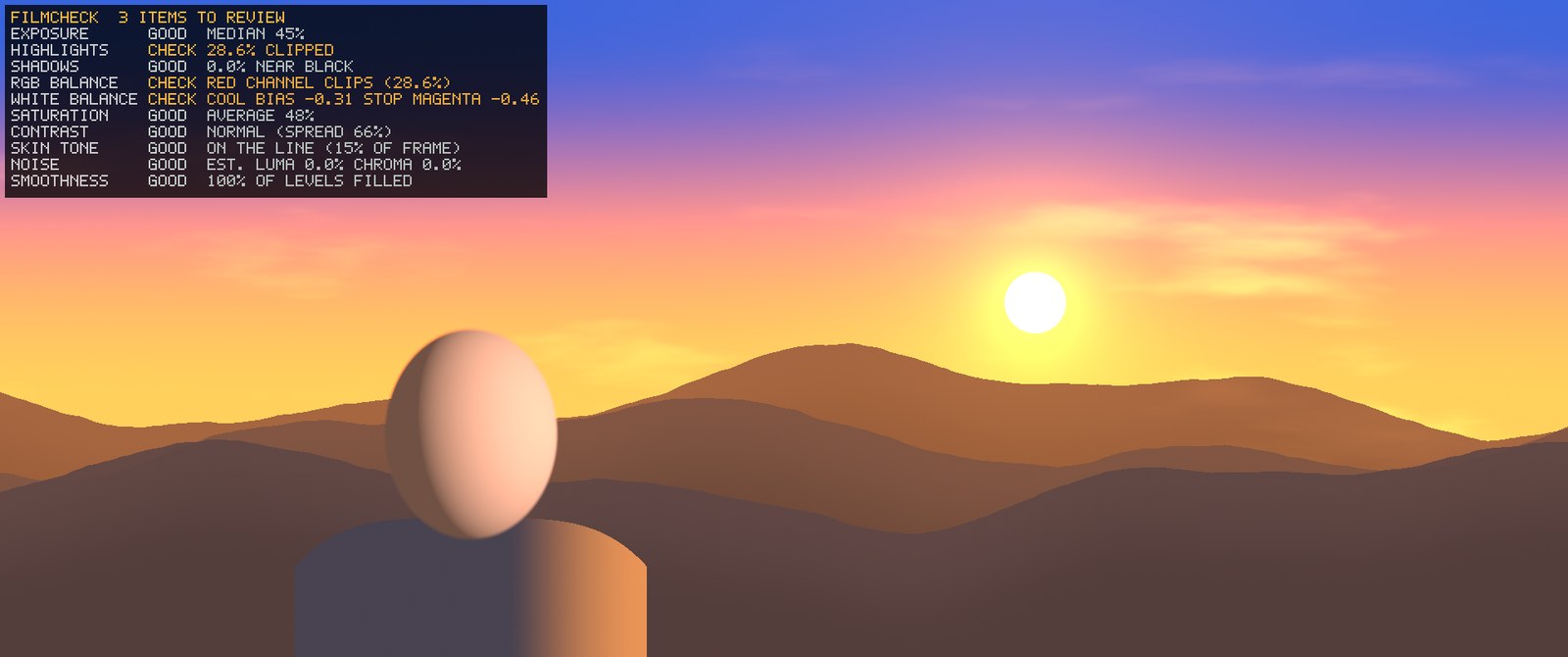
The frame is synthetic and the report is the real engine's output for that frame - not a mockup.
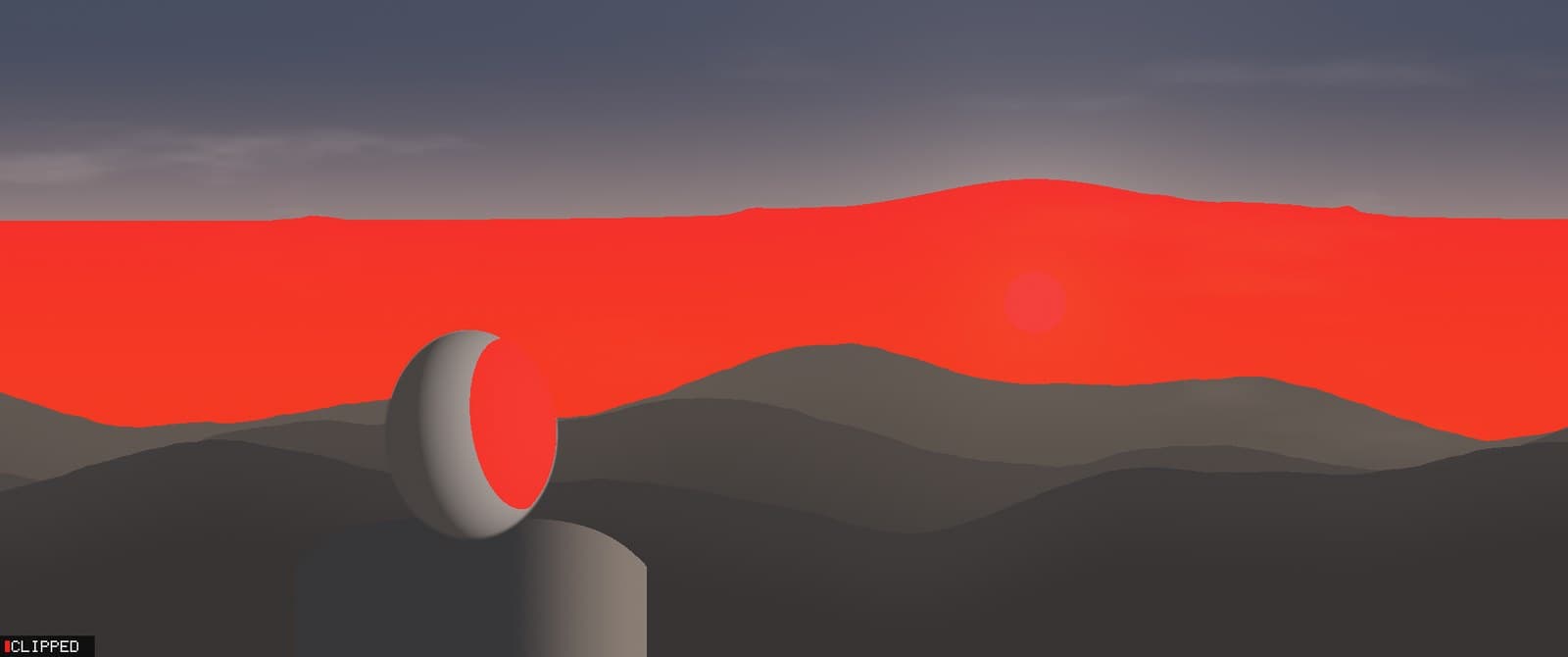
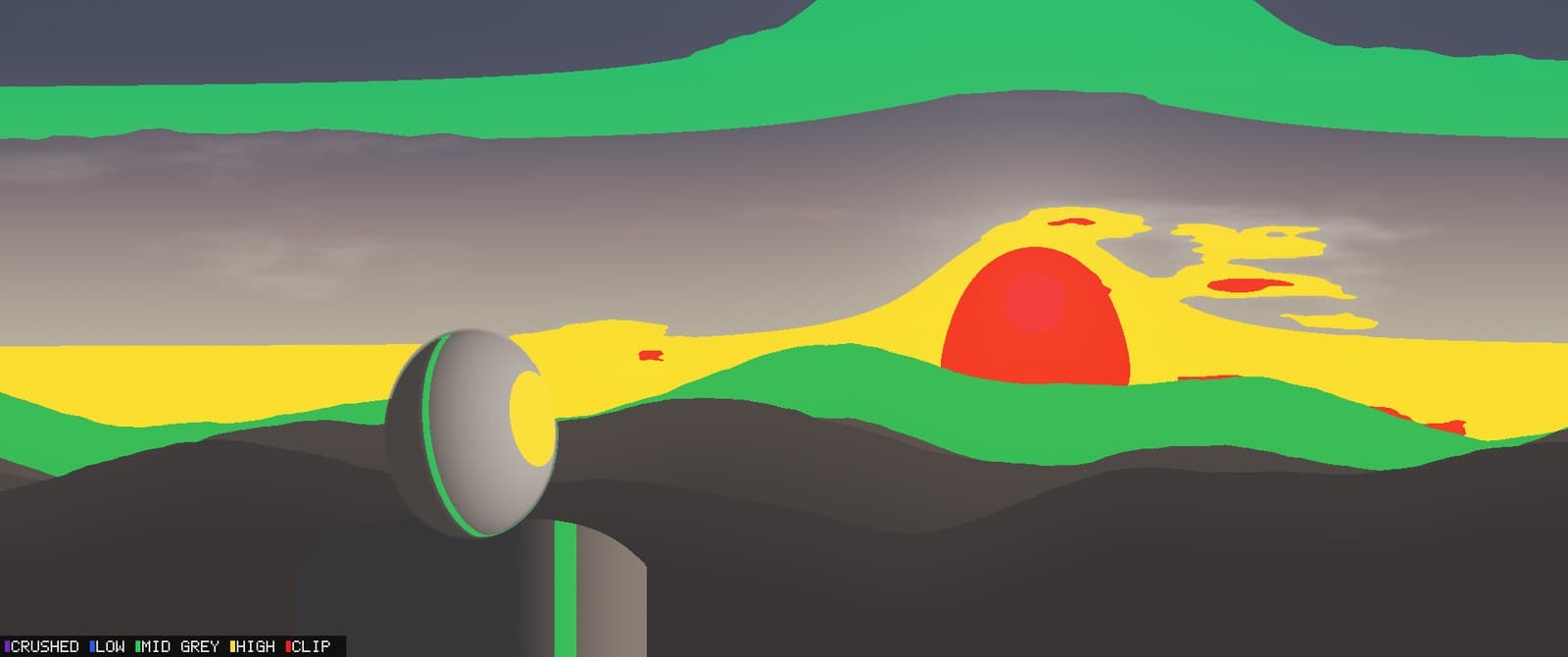
Median and range of the picture, the share of pixels that clip or crush, with limits you can change. Clipping is reported as information, never as an automatic mistake: a lamp or the sun is meant to clip.
Channel averages and channel-by-channel clipping, plus a warm / cool / green / magenta bias measured on the near-neutral parts of the frame. It says nothing about your intention, only what the picture does.
How much of the frame is extremely saturated, and whether the tonal spread is flat or very hard, with the shadow / midtone / highlight share of the picture.
A colour-based skin model finds likely skin and reports how far it sits from the vectorscope skin line. It is probabilistic: wood or sand of a similar hue can match, and FILMCHECK never changes skin.
A robust noise estimate from fine detail in flat-looking areas, and a histogram gap check for banding and posterisation. Both are labelled as estimates.
Exposure false colour, highlights, shadows, saturation, skin tone, RGB channel clipping, chroma and noise, with strength control and an optional legend. View Off returns your clean image at no cost.
Set a baseline shot, then compare other shots for exposure, contrast, colour balance and saturation. It only reports differences; it never changes a shot.
Standard, Broadcast, Cinema, Web and Custom starting limits. They are practical defaults, not official delivery specifications. FAIL appears only when you set your own delivery limit.